Operator & Administrator Guide
How to use Vaultris
Vaultris brokers and records privileged access to servers, desktops, web consoles and network devices. Nobody connects to a target directly — every session goes through the gateway, which injects the credential, records what happens, and seals the recording into an append-only ledger.
01Getting started
Sign in with your username and password, then the six-digit code from your authenticator app. Multi-factor is required — there is no way to turn it off for an individual account.
Your first sign-in forces a password change and walks you through enrolling MFA. After that you land on the workspace matching your role: operators see My Access, administrators land on the Admin dashboard.

The four buttons at the top left switch workspace:
| Workspace | What lives there |
|---|---|
| My Access | Quick Connect, your sessions, your access requests |
| Admin | Users, groups, assets, accounts, authorizations |
| Vault | Stored credentials and credential risk |
| Audit | The ledger, session history and reports |
02Connecting to a target
Quick Connect lists everything you are cleared to reach. If a machine is not here, you have not been granted it — that is the whole list.

- Find the target. Use the filter box, the platform chips, or the region selector.
- Check the Signs in as column — that is the account Vaultris will use. An amber privileged tag means it has full administrative rights on the target.
- Click Connect. The session opens in the browser; nothing is installed and you never see the password.
| Button | What opens |
|---|---|
| Connect · Terminal | An SSH shell in the browser |
| Connect · Desktop | An RDP desktop in the browser |
| Connect · Browser | A throwaway browser on the gateway, pointed at the target's web console and filmed |
| Files | SFTP transfer, if your grant allows it |
SSH from your own terminal
If you prefer a real terminal to the browser one, the gateway also speaks SSH:
ssh -p 2200 yourname@gateway.example.com
You get a menu of the same targets. The session is brokered and recorded exactly as it is in the browser.
03Sessions and playback
Every session ever brokered appears here, live ones included. Administrators see all sessions; operators see their own.

Replaying a session
Replay reconstructs the session as it happened.
| Session type | What playback shows |
|---|---|
| Terminal (SSH) | The full scrollback, replayed at recorded speed with a scrubber. Every keystroke and every line of output. |
| Desktop (RDP) | The screen as the operator saw it, with mouse movement and window activity. |
| Browser | The recorded browser session, filmed on the gateway. |
Commands, next to Replay on terminal sessions, lists every command that was run with its risk score — quicker than watching a replay when you only need to know what was typed.
04Requesting access
Some targets require an approver to agree before a session can open. When you click Connect on one, Vaultris asks why you need it rather than simply refusing.

Declaring intent
You pick a reason, and the reason carries its own time limit:
| Reason | Maximum | When to use it |
|---|---|---|
| Troubleshooting | 120 min | Something is broken and you are diagnosing it |
| Planned maintenance | 240 min | Scheduled work in a known window |
| Deployment | 120 min | Shipping a change |
| Investigation | 120 min | Looking at data or behaviour, changing nothing |
| Customer support | 60 min | Acting on a customer report |
| Emergency | 30 min | Production is down and it cannot wait |
Write a real reason. It is what the approver decides on, and it is recorded in the ledger against your name permanently.
What an approver grants
Approving is not a simple yes. The approver ticks exactly what the session may do — file upload, file download, clipboard — and sets the duration. Anything not ticked is not granted, even if your underlying permission would normally allow it.
- An approval is single use. It covers the session it was granted for, not every session until it expires.
- It expires on the clock the approver set.
- Nobody can approve their own request.
05Adding people
Creating an account
Go to Admin › Users › Add user. Only a username and a bootstrap password are required; everything else can be filled in later.
| Field | What it does |
|---|---|
| Username | Fixed once created — sessions and the audit ledger reference it, so it can never be renamed |
| Bootstrap password | One-time. They are forced to replace it at first sign-in |
| Email them the password | Off by default. A password in an inbox gets archived, forwarded and occasionally breached — hand it over another way unless you have a reason |
| Administrator | Full access to every page and every asset. Grant it sparingly |
| Groups | What they can actually reach. An account in no group can sign in and see nothing |
Multi-factor is not optional. Whoever you create will enrol an authenticator at first sign-in and cannot skip it.
Giving access for a limited time
There are three separate time limits, and they answer different questions. Setting the wrong one is the usual reason access does not expire when somebody expected it to.
| Where | Limits | Use it when |
|---|---|---|
| On the user account (Add or edit user) | When the account may sign in at all | A contractor for one week, a visitor for 24 hours, a new starter from Monday |
| On group membership (Groups page) | How long they stay in that group | They keep their account but should drop out of one team’s access |
| On the authorization (Authorizations page) | How long that grant is valid, for everyone it covers | A project that ends, a temporary change window |
On the account, choose one of three shapes:
- No time limit — a permanent member of staff. The default.
- One-off window — pick a start and an end. “From now, for 24 hours” is a single click.
- A recurring pattern — for example Monday to Friday, working hours, enforced by a login rule under ACLs.
When the invitation does not arrive
Open the user and choose Resend invitation. If the original password was never received, use Resend with a new password — the old one cannot be read back, only replaced.
If they have lost their authenticator, use Reset MFA on the users list; they enrol a new one at their next sign-in.
06Groups and authorizations
Access is granted to groups, never to a person directly. A person gets access by being a member of a group that has been granted something.

An authorization answers four questions at once: who it is for, what they may reach, which account they sign in as, and what they may do there.

07Assets and regions
An asset is a thing you connect to. Each carries its address, its platform, the protocols it offers, and the accounts Vaultris holds for it.

Assets can be filed under a region, which lets you filter both the catalogue and every report to one location.
08The Vault
The Vault workspace reports on every credential the gateway holds and how exposed each one is. Secrets are write-only: the gateway injects them into sessions, but no path returns one — not even to an administrator.

Risk detection reads the vault's own records and ranks what it finds. It never reads a secret back, so there is no password-strength check — the checks are about hygiene the metadata can prove:
| Check | What it catches |
|---|---|
| Stale privileged | A full-admin secret that has never been rotated |
| No secret stored | An account the gateway cannot inject — every session attempt will fail |
| Widely granted | A credential reachable by more people than it needs to be |
| Dormant | A credential nobody has used in months |

09Network devices
For Cisco IOS and MikroTik RouterOS, Vaultris does more than proxy bytes. A router is a configuration, so the gateway reads that configuration before and after every session and shows you what changed.
- Capture — reads the running configuration and stores it, with passwords and community strings masked out first.
- Baseline — mark a capture as the approved reference.
- Drift — how the device differs from that baseline now, ignoring timestamps and counters so only real change shows.
- Roll back — put a stored configuration back.
10Host health
Before you open a session, you can see what the machine is actually doing. Press Health on any row in Quick Connect.
Nothing is installed on the target. The gateway asks it over SNMP and ICMP and reports what comes back — CPU, memory, filesystems, uptime, how many people are signed in, and what is crossing each network card.
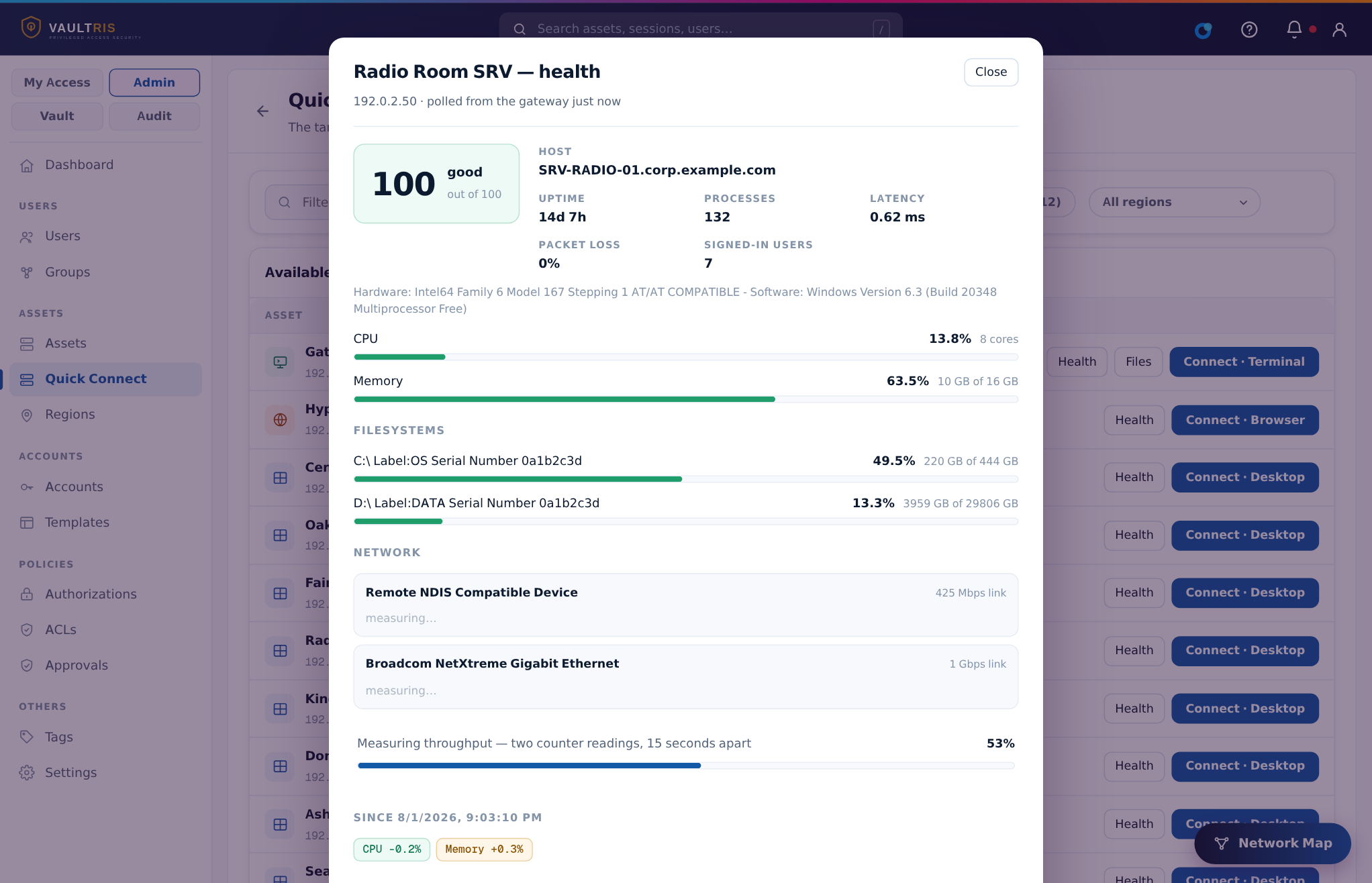
Reading the score
The score is plain arithmetic — deductions from 100 for high CPU, memory, disk, latency, packet loss or a saturated link. It is deliberately simple so anyone can reconstruct it by hand. A machine that answers the network but not SNMP shows no score at all rather than a made-up one.
| What it says | What it means |
|---|---|
| Good / Needs watching / Degraded | Telemetry arrived and was scored |
| No telemetry | The host answers the network but not SNMP — usually the community string, or the SNMP service is not running |
| Unreachable | Nothing answered at all. A different problem entirely, which is why it is reported separately |
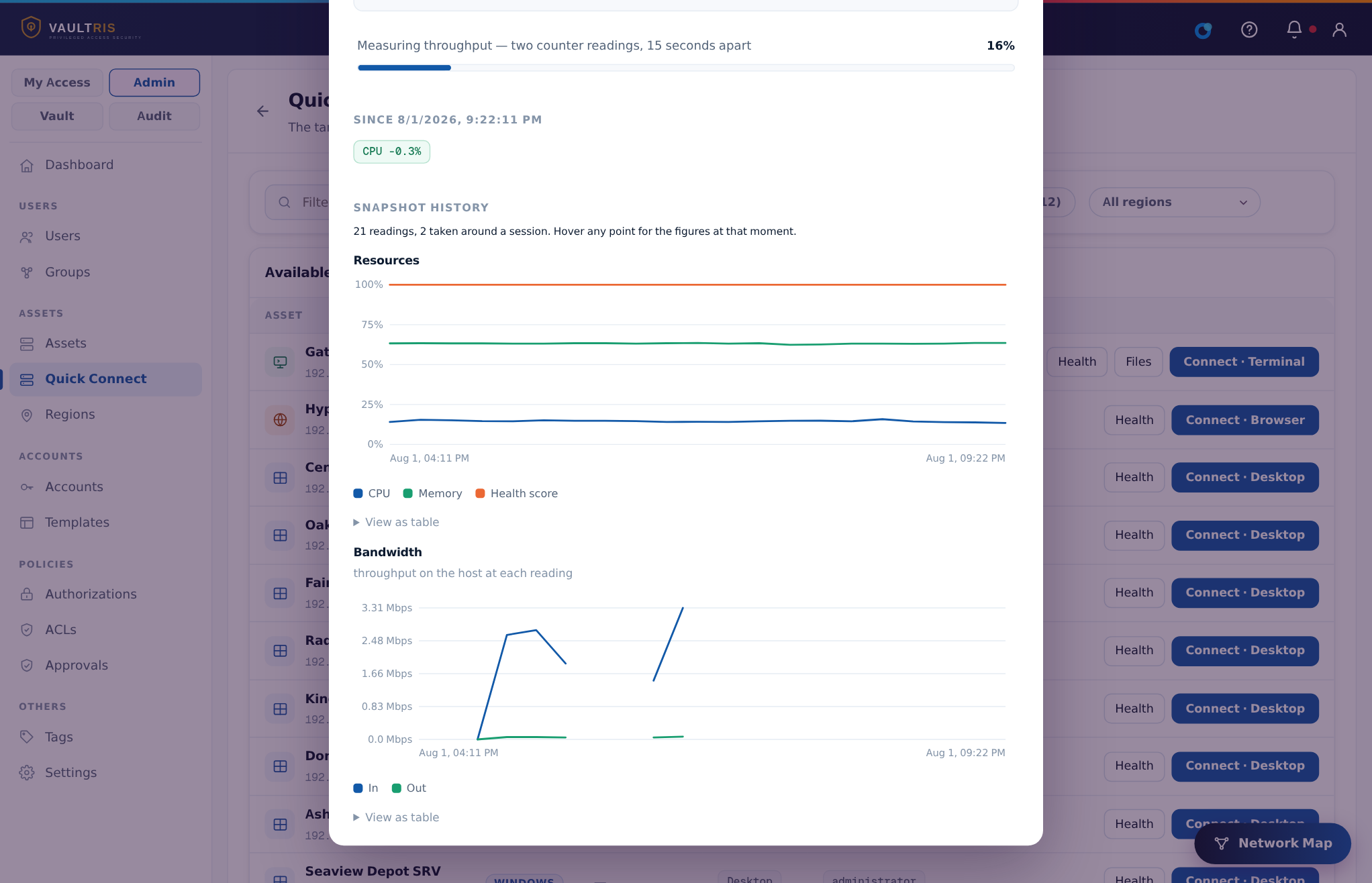
What changed since last time
Every reading is kept, so the panel also draws the machine’s history — CPU, memory and health score on one chart, bandwidth on its own. A snapshot is taken automatically as each session opens and closes.
11Audit and reports
Every action on the gateway lands in an append-only, hash-chained ledger. Each entry's hash covers the one before it, so removing or altering any past record breaks the chain from that point onward — visibly.


| Report | Answers |
|---|---|
| Session activity | Who connected to what, for how long, with how much evidence |
| Access review | Who can reach what, as which account — the one to hand an auditor |
| Evidence integrity | Whether every recording still matches its sealed digest |
| File transfers | Every file moved, with its hash — including refused attempts |
| Commands | Every command run, with risk score and whether it was blocked |
Running a report is itself written into the ledger.
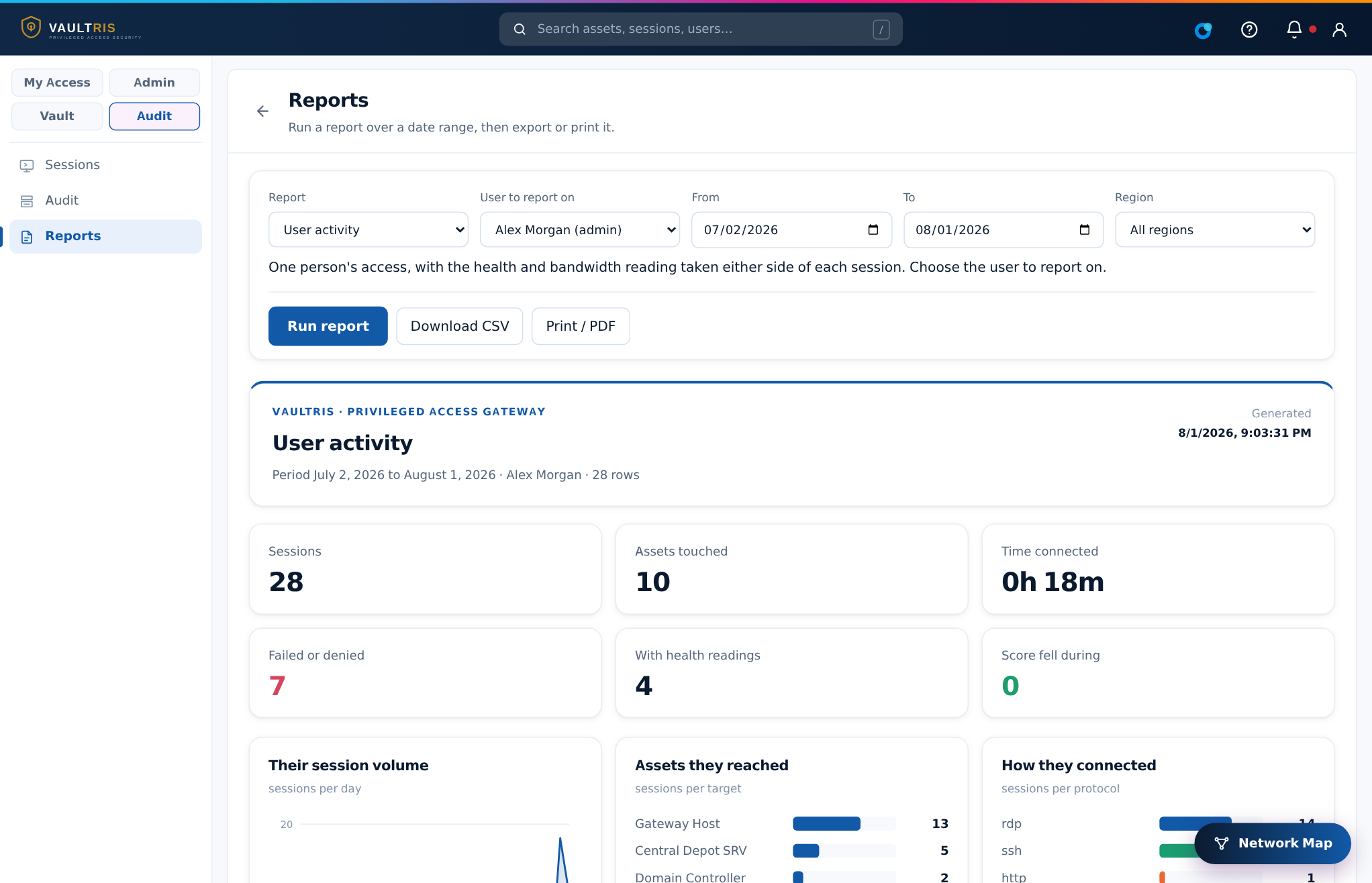
Reporting on one person
Choose User activity and pick a name. You get every session that person opened, and — where the machine could be measured — its health and bandwidth immediately before and immediately after each one.
Taking it out of the building
Download CSV gives every column at full precision. Print / PDF produces a document meant to be read by someone who has never seen this portal: a cover page, a plain-language explanation of what the report shows, the figures and charts, the detail table, and a glossary of every term used. Expanded rows print with their charts.
12Notifications
The bell reports things the gateway currently wants looked at. Alerts are recomputed from live state, so one disappears when the problem behind it is fixed — there is nothing to tidy up.

Administrators can configure email delivery on the same page, so drift, failed sessions, policy findings and access requests reach people who are not looking at the portal.
13Keeping it locked down
Three administrator settings, all on the Settings page.
The certificate
The gateway shows what it is presenting to browsers and how long it has left, with a warning well before it lapses. An expired certificate stops every browser reaching the portal — including yours — so this is worth glancing at.
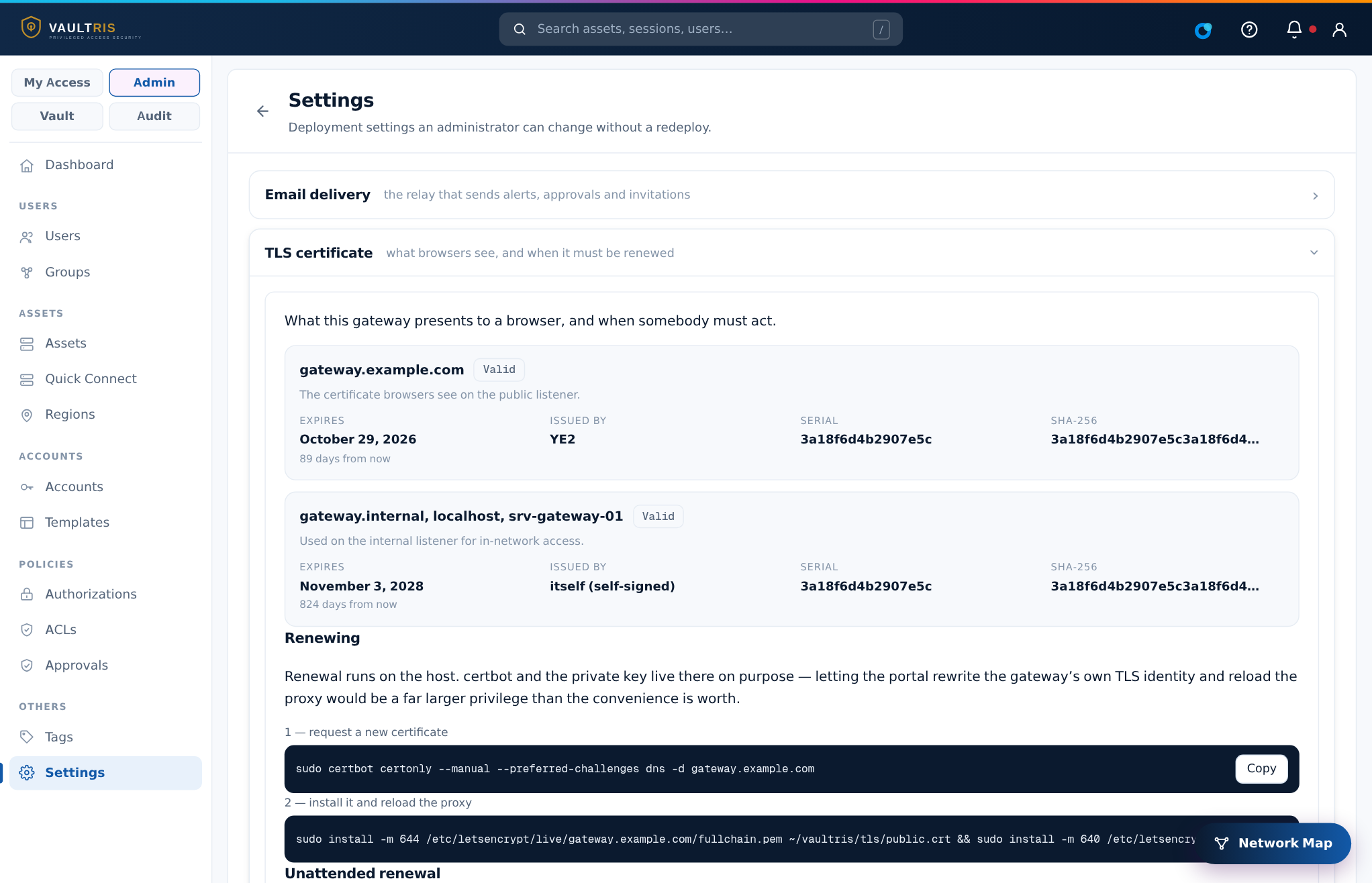
Renewal runs on the host, not from the portal. The page carries the exact two commands with a copy button. That boundary is deliberate: letting a web application rewrite the gateway’s own TLS identity and reload the proxy would be a far larger privilege than the convenience is worth. Storing DNS-API credentials makes renewal unattended, and the secret is encrypted like a vaulted password.
Allowed source addresses
You can restrict which public addresses may reach the gateway at all. Requests from anywhere else are refused before sign-in, so a stolen password is only useful from an address you have already agreed to — and every refusal is written to the ledger.
Loopback and the internal networks are always allowed; those are the gateway talking to itself. The page shows the address you are connecting from and will refuse to save a list that does not include it, because a list that locks out its own author takes effect immediately and leaves nowhere to fix it from.
Resending an invitation
Welcome messages get filtered, lost, or sent before the mailbox existed. Open the user under Users and choose Resend invitation. Resend with a new password also issues a fresh temporary password and requires them to change it at first sign-in — use it when the original was never received, since the old password cannot be read back, only replaced.
14Where you reach it
Every deployment publishes the same portal on the addresses that make sense for its network. A typical layout:
| From | Address | Notes |
|---|---|---|
| On the local network | https://10.20.4.90/ | Internal certificate — trust it once and the warning stops |
| Over the VPN | https://10.20.9.3/ | Same portal, same certificate |
| By name | https://gateway.example.com/ | Publicly trusted certificate, no warning |
| SSH gateway | ssh -p 2200 you@gateway.example.com | Menu-driven, brokered and recorded |
If something will not connect
- The target is not in Quick Connect — you have not been granted it. Ask an administrator to add you to the right group.
- "This asset needs an approver to agree first" — the request form opens automatically. Fill it in and it goes to the approvers.
- The session opens and closes immediately — the target refused the credential, or is unreachable. The Sessions list shows the reason on that row.
- A command was blocked — a command rule matched it. The block and the rule that caused it are both in the ledger.
Screenshots use invented asset names, people and documentation addresses. No real infrastructure is shown. Addresses above are examples — your deployment has its own.
Next Step
Want this discipline over your own network?
We will walk your current access paths and show exactly where the gateway sits.